

Package Redemption Code Usage Guide
This article provides detailed instructions on using redemption codes for Enterprise Plan. You may first review Billing Overview or consult your account manager to confirm your understanding of relevant costs, then proceed with redemption and activation according to this guide.
Prerequisites
2. Tencent Cloud account must be in good standing and must not have overdue payments.
3. You have obtained the redemption code from Tencent Cloud business or technical engineers.
Redemption Method
Method 1: Redeeming on the Plan Management Page
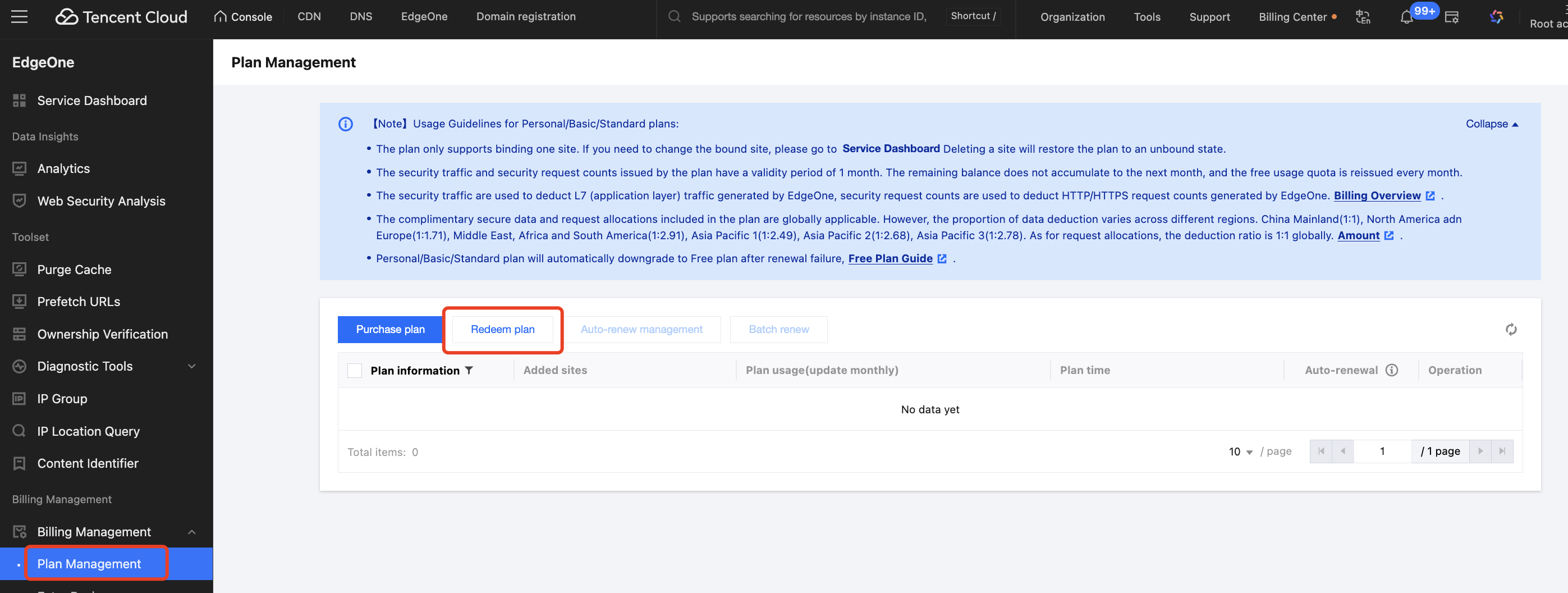
1. Log in to the EdgeOne console - Plan Management, select Redeem plan.
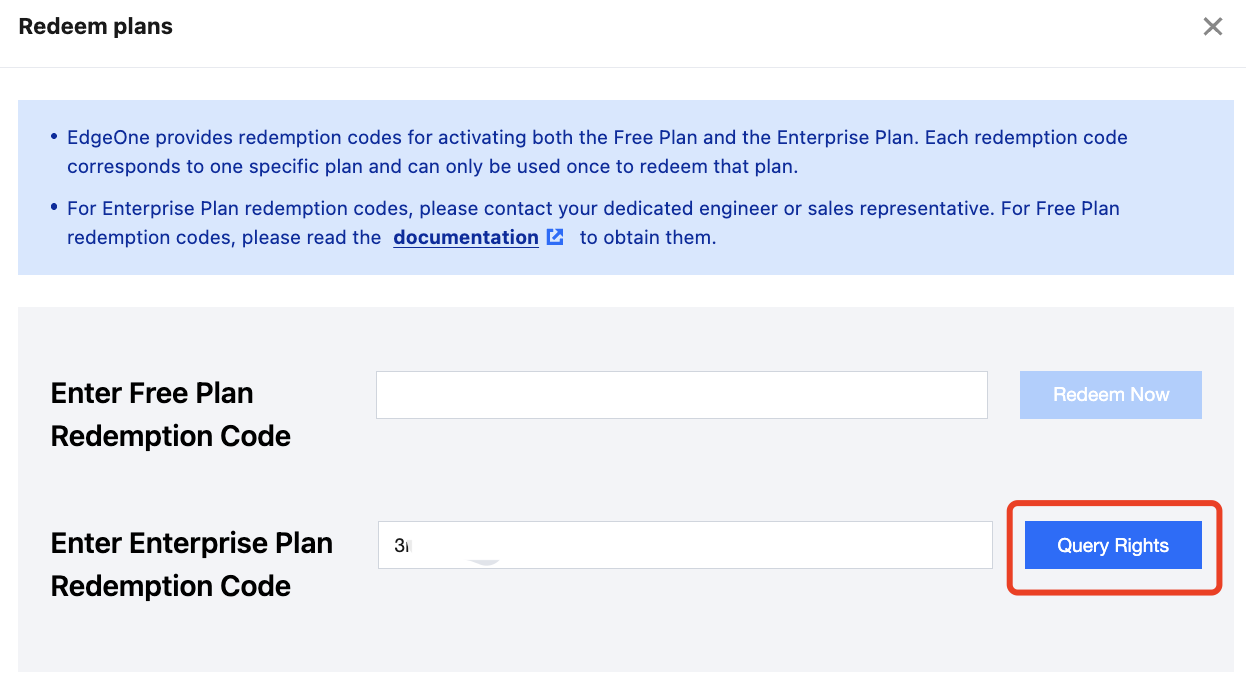
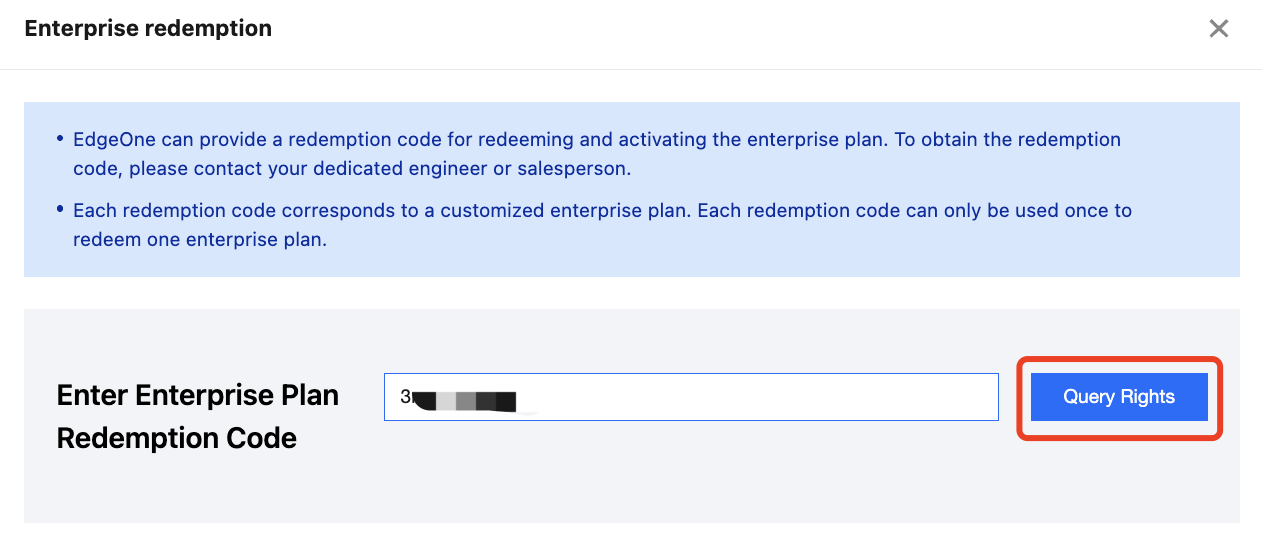
2. After entering the redemption code you obtained into the text box, click Query Rights to query the plan information corresponding to the redemption code:
3. Confirm the plan information, select "I have read and agree to the EdgeOne Service Level Agreement and the Refund Policy", then click Confirm Redemption to complete the redemption of the Enterprise Plan.
4. After the Enterprise Plan is successfully redeemed, the Plan ID of the Enterprise will be returned. Click OK.
5. Select the successfully redeemed Enterprise Plan, click Go to Bind to start the site access process.
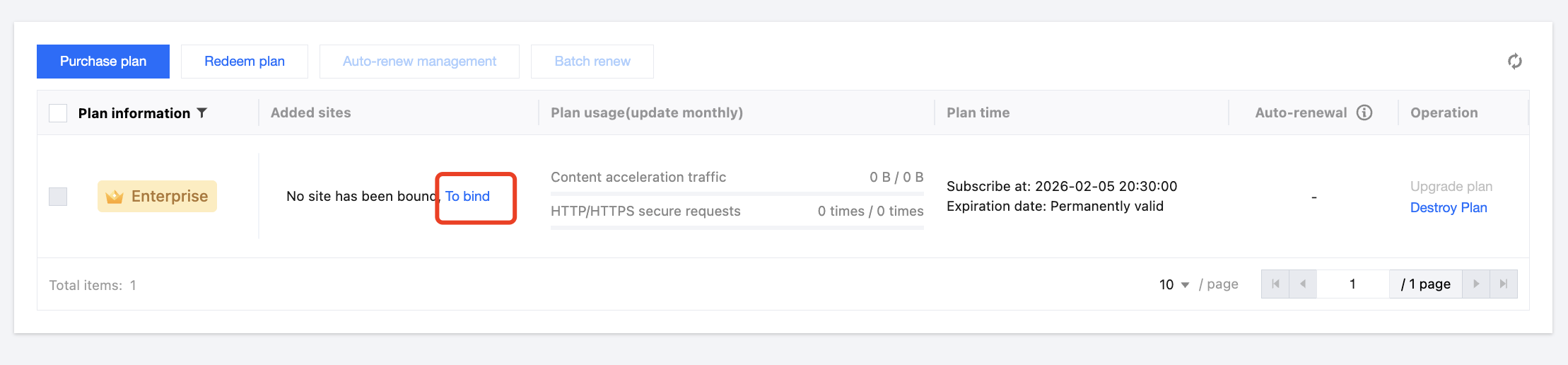
6. For the site access process, you can refer to Quick access to website security acceleration for details.
Method 2: Redeeming When Adding a Site
1. Log in to the EdgeOne console, select Add Site, for details, refer to Quick access to website security acceleration.
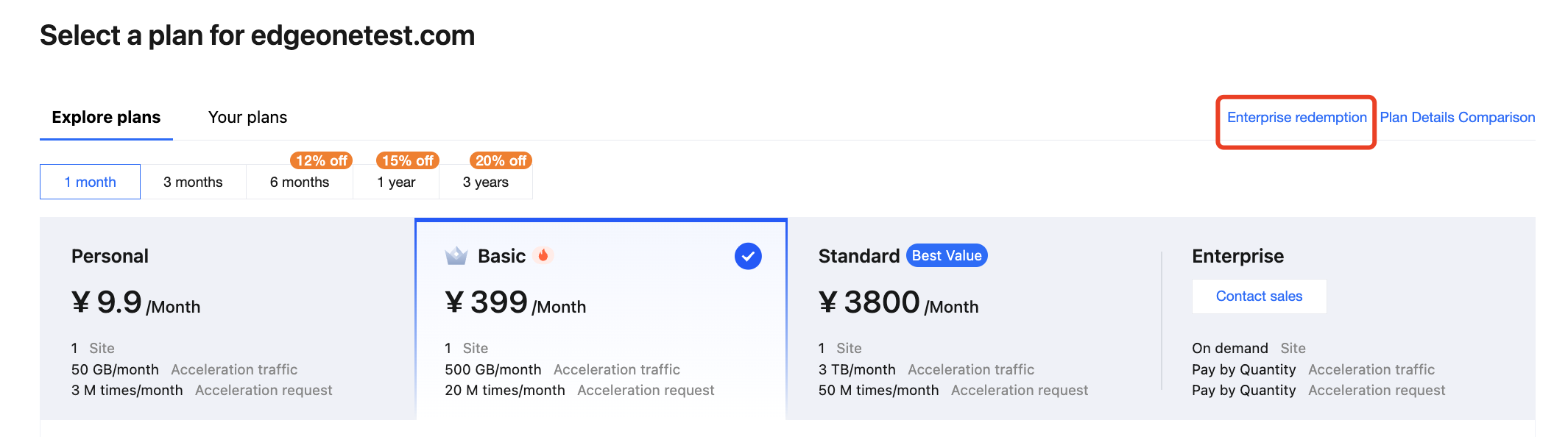
2. After you go to the plan selection page, click Enterprise Redemption.
3. After entering the redemption code you obtained into the text box, click Query Rigths to query the package information corresponding to the redemption code.
4. Confirm the plan information, select "I have read and agree to the EdgeOne Service Level Agreement and the Refund Policy", then click Confirm Redemption to complete the redemption of the Enterprise Plan.
5. After the Enterprise Edition plan is successfully redeemed, click OK and Create Site to continue with the subsequent process.
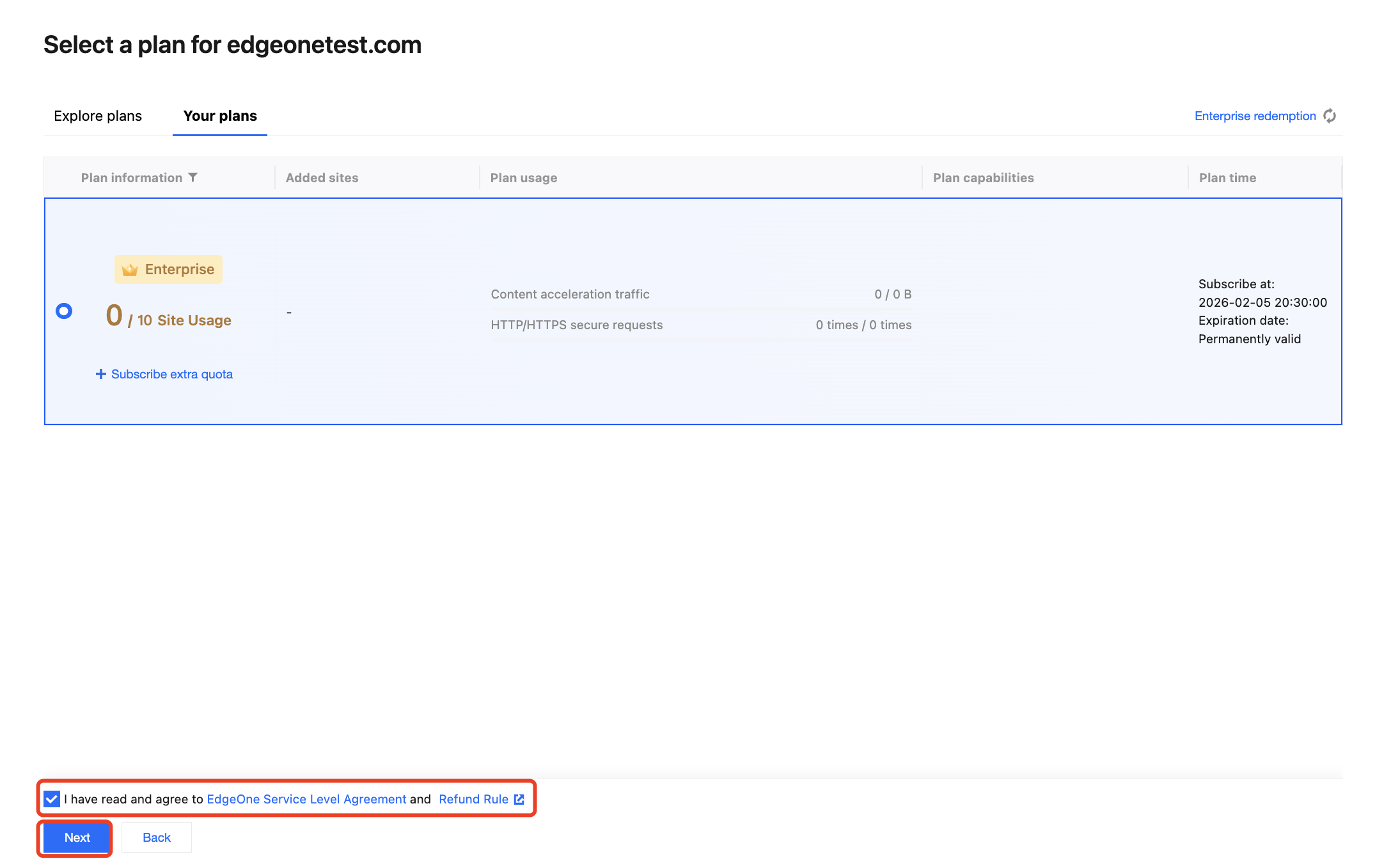
6. Select the redeemed Enterprise Plan, select "I have read and agree to the EdgeOne Service Level Agreement and the Refund Policy", then click Next.
7. Finally, select the acceleration region and access mode to complete site access. For details, refer to Quick access to website security acceleration.