Observability
  • Log Service
    • Overview
    • Real-time Logs
      • Real-time Logs Overview
      • Push to EdgeOne Log Analysis
      • Push to Tencent Cloud CLS
      • Push to AWS S3-Compatible COS
      • Push to HTTP Server
    • Log Analysis (Beta)
      • Log Analysis(Beta) Overview
      • How to use Log Analysis filter condition
      • How to Modify Log Analysis Query Time Range
    • Offline Logs
    • Related References
      • Field description
        • L7 Access Logs
        • L4 Proxy Logs
        • Edge Function Running Logs
        • Managed Rule Logs
      • Real-Time Log Push Filter Conditions
      • Custom Log Push Fields
      • Customizing Log Output Formats
  • Data Analysis
    • Overview
    • Analytics
    • Web Security Analysis
    • Data Report
    • Related References
      • Sampling Statistics
      • How to use filter condition
      • How to Modify Query Time Range
      • How to Export Statistical Data and Reports
      • How to Use API to Implement Grouping Aggregation in a Single Call
  • AlarmService
    • Custom Statistical Metrics

How to Modify Log Analysis Query Time Range

The EdgeOne log analysis page supports user customization of time range filter criteria. The following context mainly introduces two methods to filter the time range.
Note:
To improve query efficiency, data granularity for different time ranges is as follows:
Time range ≤ 2 hr: 5 min.
2 hr < time range ≤ 48 hr: 30 min.
48 hr < time range ≤ 7 days: 4 hr.
Time range > 7 days: 1 day.

Method 1: Set Query Time Range through Filtering

Quick query: Set time range data by clicking last 1 hr, last 6 hr, today, yesterday, last 3 days, last 7 days, last 30 days buttons.

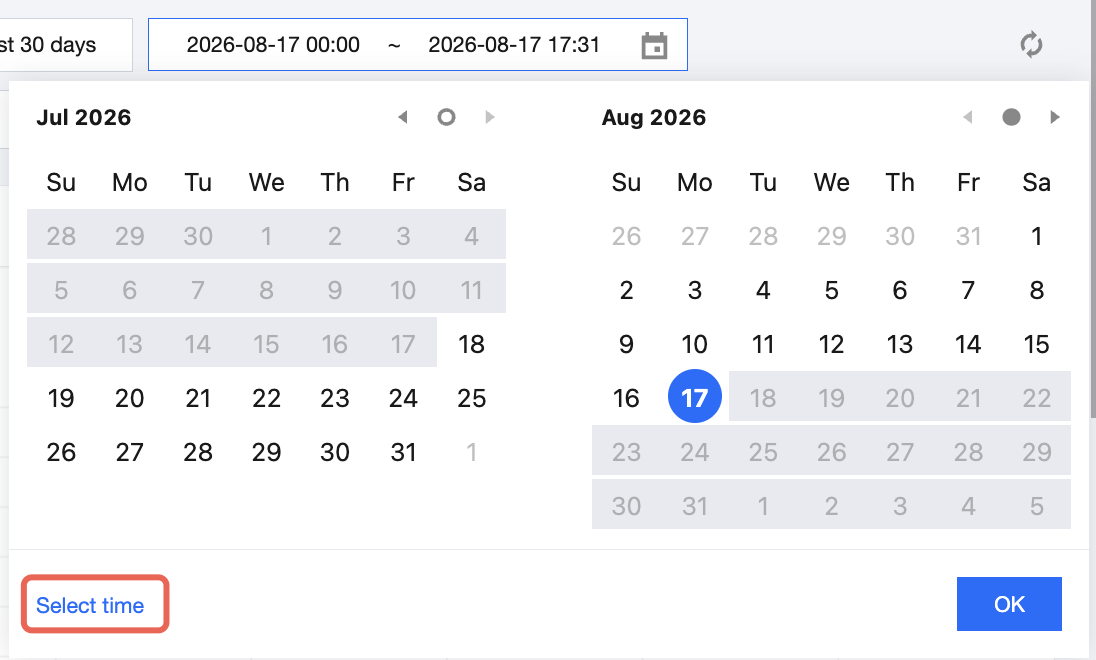
Custom query: You can also select a specific date and time range to query data within a custom time range.

Note:
Max Time per request: 31 days.

Method 2: Select Query Time Range on Time Trend Chart

To view a specific time period on the bar trend chart, as shown below, click and slide on the curve to select the specific area. The corresponding time range will be filled in the top filtering bar and impact the log details.