

Step 1: Configure Authentication Method
Overview
This document describes how to configure attesters on EdgeOne. These configurations determine which verification processes clients must complete to obtain corresponding verification credentials. In addition to preset attesters, EdgeOne also provides multiple verification method options, such as EdgeOne CAPTCHA, Tencent Cloud Captcha, and Tencent Cloud RCE. Businesses can select the appropriate type based on their risk control requirements.
Note:
Before configuring client attestation rules, please first refer to the process in this document to create a custom verification method, configure associated information, valid period (TTL), and related parameters.
Using Attestation Methods
EdgeOne provides two types of attestation method options: preset and custom. Before configuring a custom verification method, ensure that the corresponding attestation configuration instance is already in the related product creation.
Presetting an Attestation Method
EdgeOne provides the following preset attestation methods, which can be used directly without integrating the SDK:
JavaScript challenge: used to check whether the client accessing the Web page has a JavaScript runtime environment.
Hosted challenge: used to check whether the client accessing the Web page is a browser and operated by a human. The hosted challenge process includes verification code mechanisms such as slider challenges.
Note:
JavaScript challenge and managed challenge use interstitial challenge method, not suitable for API service or AJAX architecture webpage.
Custom Verification Method
You can use custom attesters to control client access to EdgeOne sites with more diverse risk control capabilities. After completing the custom verification method configuration, you can specify the custom verification method in client attestation rules. EdgeOne will automatically require clients to provide designated attestation credentials within the validity period according to your configuration, achieving risk control impact. When using custom attesters, you need to configure the following options:
Attester: The provider of risk control capabilities. Your client will perform independent client attestation with the attester and obtain attestation credentials. Currently supported options include EdgeOne CAPTCHA (recommended), Tencent Cloud Captcha, and Tencent Cloud RCE.
Attestation configuration information: used to associate detailed attestation configurations, that is, the unique identifier and authentication parameters provided by the attester for your risk control configuration. (For example, Tencent Cloud Captcha provides a unique APPID and SecretKey for each of your configuration items.) EdgeOne will use the configuration information you provide to obtain attestation credentials and attestation results. If you select EdgeOne CAPTCHA, you do not need to create an instance in a third-party product or fill in the above parameters, as EdgeOne provides the attestation service as a first party.
Valid period TTL: The valid duration of the attestation result. After TTL expires, it will no longer be accessible through client attestation, and the client must re-execute the attestation process. Reasonably setting TTL can balance user experience and security.
EdgeOne CAPTCHA
EdgeOne CAPTCHA provides attestation services directly through EdgeOne, supporting human-machine identification for clients on browsers, WebViews, and native mobile apps (iOS/Android). Native mobile apps must integrate the EdgeOne Client Attestation SDK before use.
Attestation options: Select verification strength by client type. Browser/WebView supports
frictionless verification (completed without user interaction) and adaptive interactive verification (interactive verification required only for some risky users). Native mobile apps support frictionless verification.Scenario Example
Perform security attestation for clients accessing the login API of site
www.example.com. H5 clients, iOS, and Android mobile devices must utilize existing Tencent Cloud verification code instances for validation in advance when accessing the login API. High-risk client access is blocked. If repeated visits to the login API exceed 2 hours, re-validate the client.Operation Steps
Note:
1. Before performing the operation steps here, please ensure you have created a
CAPTCHA instance in the Tencent Cloud Captcha.2. To perform client attestation by using Tencent Cloud risk identification RCE, create a
risk control policy instance in the Tencent Cloud Risk Control Engine console in advance.3. After completing the configuration steps in this document, proceed to configure client attestation rules.
1. Log in to the Tencent Cloud EdgeOne console, enter Service Overview in the left menu bar, and click the configured site under Secure Content Delivery Network.
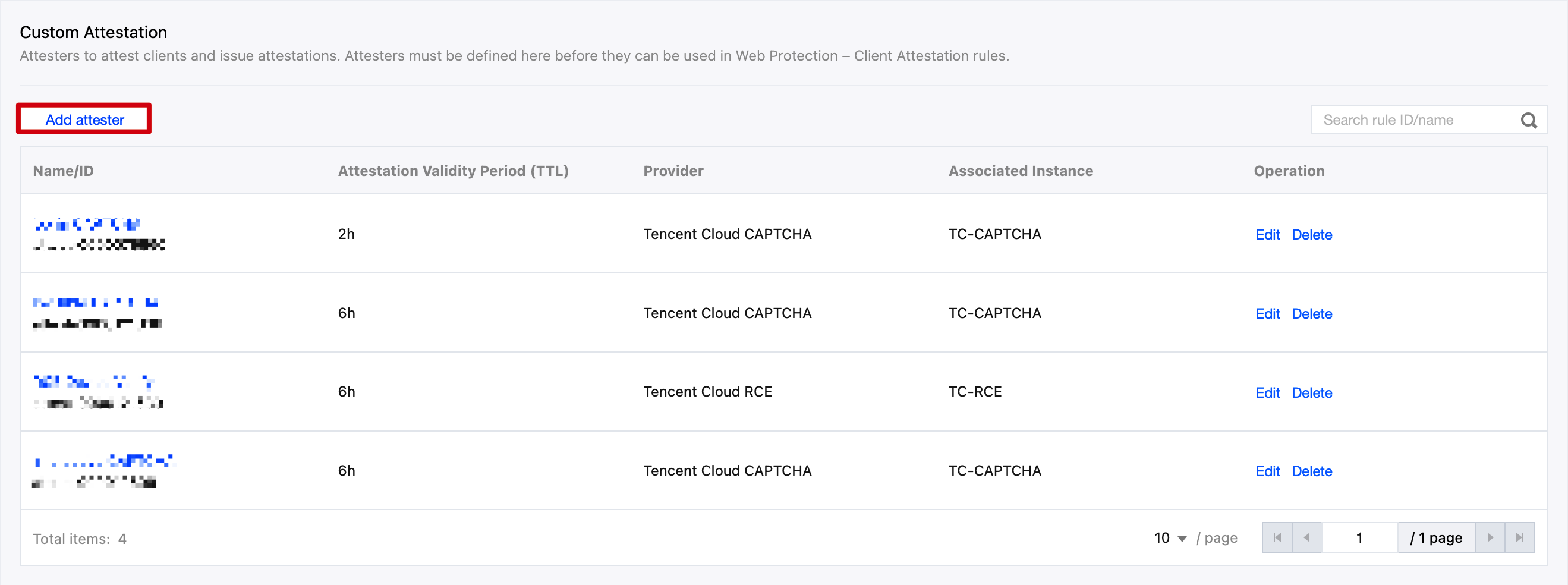
2. Click Security Protection > Client Attestation. Click the Attestation Options tab , and under Custom Verification, click Add Attester to enter the attestation integration access configuration interface.
3. Enter the attestation name, select the attestation provider, and enter the relevant instance configuration information. For example, for Tencent Cloud Captcha, select
Tencent Cloud Captcha as the attestation provider in the Provider option, and enter the AppID and SecretKey provided by the Tencent Cloud Captcha console. In the attestation options, select a validity period of 2 hours.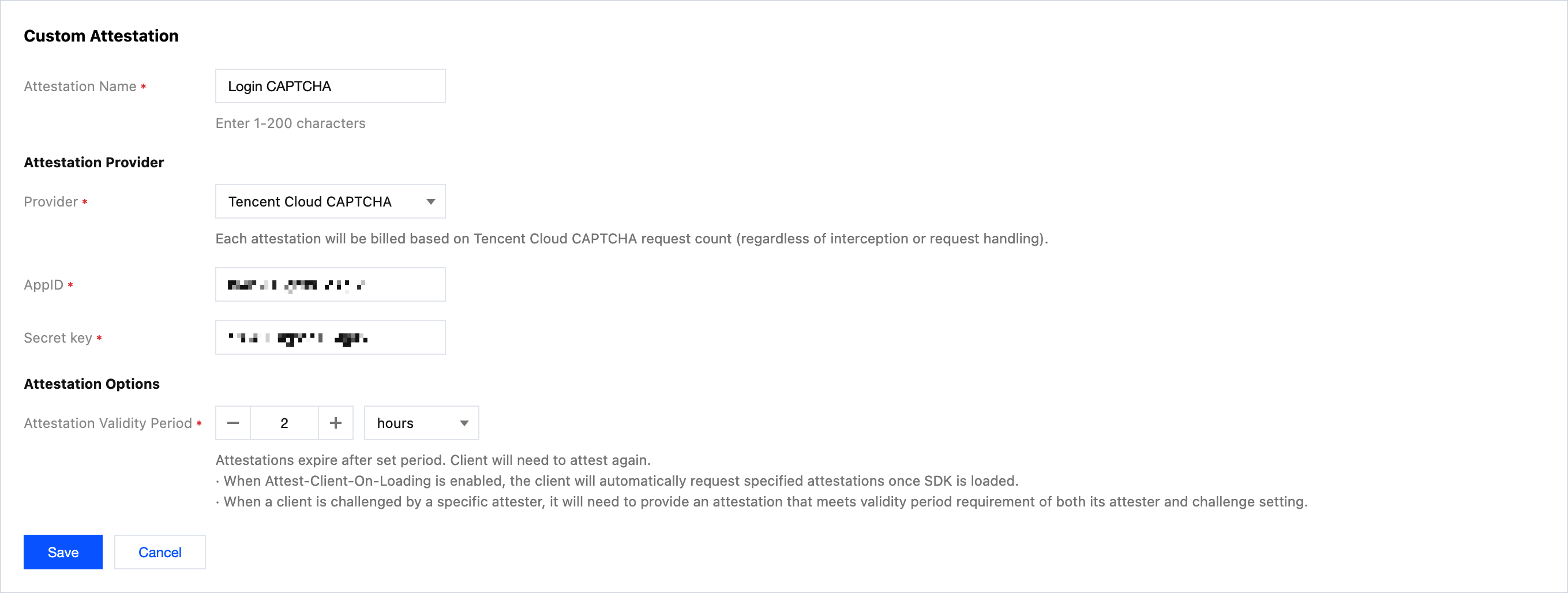
4. Click save and publish to deploy the rule, then proceed to configure client attestation rules.