Video transcoding is one of the most common video processing methods, which can change the codec, resolution, bitrate and other parameters of the original video to adapt to the playback on different terminals and in network environments.
The traditional offline transcoding is an asynchronous processing mode that requires pre-decoding and encoding of the entire audio and video. The processing time is often 30% to 50% of the original video duration, and the user has to wait for a long time.
EdgeOne's video just-in-time processing allows audio and video files to be distributed and transcoded immediately after upload, without waiting. Regardless of the video duration, playback in seconds can be achieved, providing users with a new media processing experience.
Billing Instructions
This feature is a paid service and will be billed based on the video processing duration. For details, see Billing Instructions.
Features
Advantage
Details
Ease of use
There is no need to integrate media processing APIs or SDKs to initiate processing tasks or receive offline transcoding task completion callbacks. The just-in-time transcoding processing allows just-in-time playback of transcoded videos by adding parameters to the original video playback address.
Very short time
The offline transcoding requires asynchronous waiting for the transcoding task to complete. For the just-in-time transcoding, regardless of the original video duration, the just-in-time transcoded video can be played in a very short time, almost without waiting.
Reduced storage cost
The traditional offline transcoding feature requires the storage of newly processed file contents, but the just-in-time transcoding does not require the storage of processed videos. It supports caching only to the EdgeOne edge nodes, which reduces the storage cost of the origin server by multiples.
Practical Scenarios
Scenario
Details
UGC user uploaded video
The just-in-time transcoding processing takes much less time than the offline processing and is completed almost in sync with distribution. In UGC user scenarios, it allows immediate distribution and playback after upload, greatly enhancing the UGC user experience and increasing user stickiness.
Long online education video
Long video files for online courses are usually large, and encoded files can multiply storage costs. For example, transcoding an original MP4 video in the traditional way requires converting it to 720p, 1080p, and 2k resolutions and packaging it into HLS format, which requires storing four video files in total. However, with real-time transcoding, only one original file needs to be stored, greatly reducing storage costs.
TV stations and OTT
Some video content requires continuous modification. Video creators can save only the MP4 format for easier editing. When a terminal playback request is received, the latest version of the video content will be processed through real-time transcoding into a resolution and packaging format suitable for playback and then distributed immediately, greatly improving efficiency.
Preparations
An acceleration domain name has been added in EdgeOne, and the origin server supports video just-in-time processing. Currently, the supported origin server types for the video just-in-time processing feature include: VOD and other object storage-based origin servers (including third-party cloud object storage origin servers). For details about VOD origin servers, see VOD Origin Server Instructions.
Note:
If your current domain name has Token Authentication enabled and the authentication method used is not TypeV Authentication, we recommend that you change the authentication method to TypeV when using the just-in-time transcoding processing to avoid failure in authentication after the video is transcoded to HLS.
Use Method
You can directly implement video processing by concatenating just-in-time processing-related parameters in the client request URL. Refer to the following steps to learn how to use it.
1. Log in to the Tencent Cloud EdgeOne console, enter Service Overview in the left menu bar, and click the site to be configured under Website Security Acceleration.
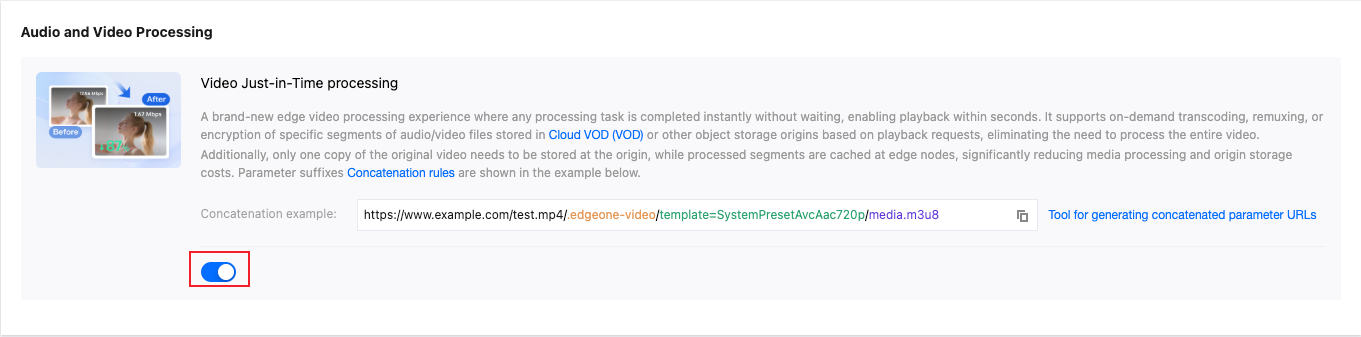
2. On the site details page, click Multimedia Services > Audio and Video Processing to find the Video Just-In-Time Processing card.
3. Click the Switch for Video Just-In-Time Processing to enable this capability.
4. After enabling, you only need to concatenate parameters such as /.edgeone-video after the client request URL to pass video processing requirements. EdgeOne will automatically complete video processing based on the video processing parameters in the client request URL. For parameter concatenation instructions, see How to Concatenate Just-In-Time Transcoding URL.
How to Concatenate Just-In-Time Transcoding URL
You can distribute transcoded videos by spelling the just-in-time transcoded file address according to the following rules, or directly use the Generate Transcoding Address Tool to obtain the transcoded file URL. The specific rules are as follows:
1. Original video URL: It is the complete URL of the original video, for example: https://www.example.com/video.mp4.
2. Fixed parameter for video processing: It is the fixed /.edgeone-video directory filled in, indicating the use of EdgeOne's video processing feature.
3. Just-In-Time Transcoding Template ID: Specifies a template for just-in-time transcoding, where {templateID} is the template ID.
4. Transcoded file name: This parameter is fixed as media concatenated with a suffix {ext}. Currently, the supported suffixes include m3u8 and mp4, representing converted HLS and MP4 formats respectively. The specific muxing format supported is determined by Just-In-Time Transcoding Template.
Just-In-Time Transcoding Template
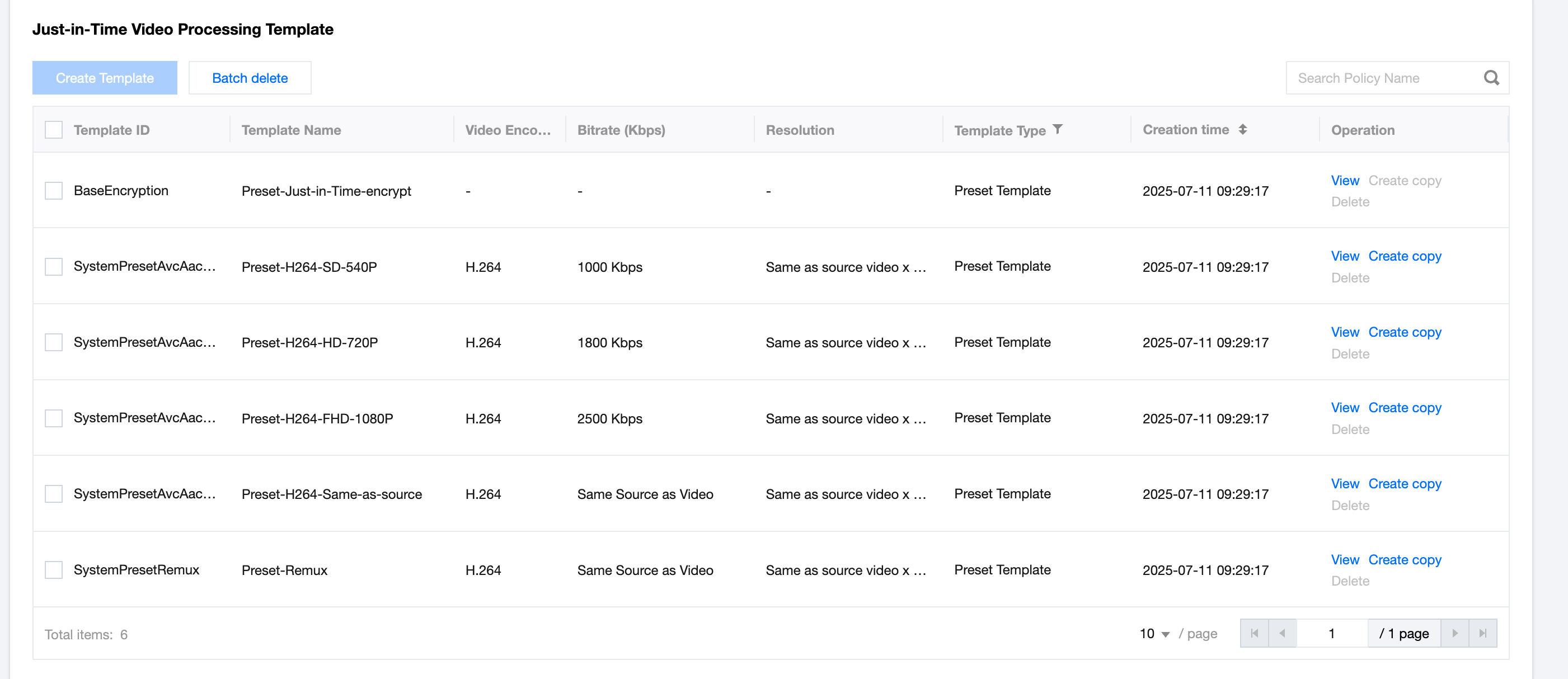
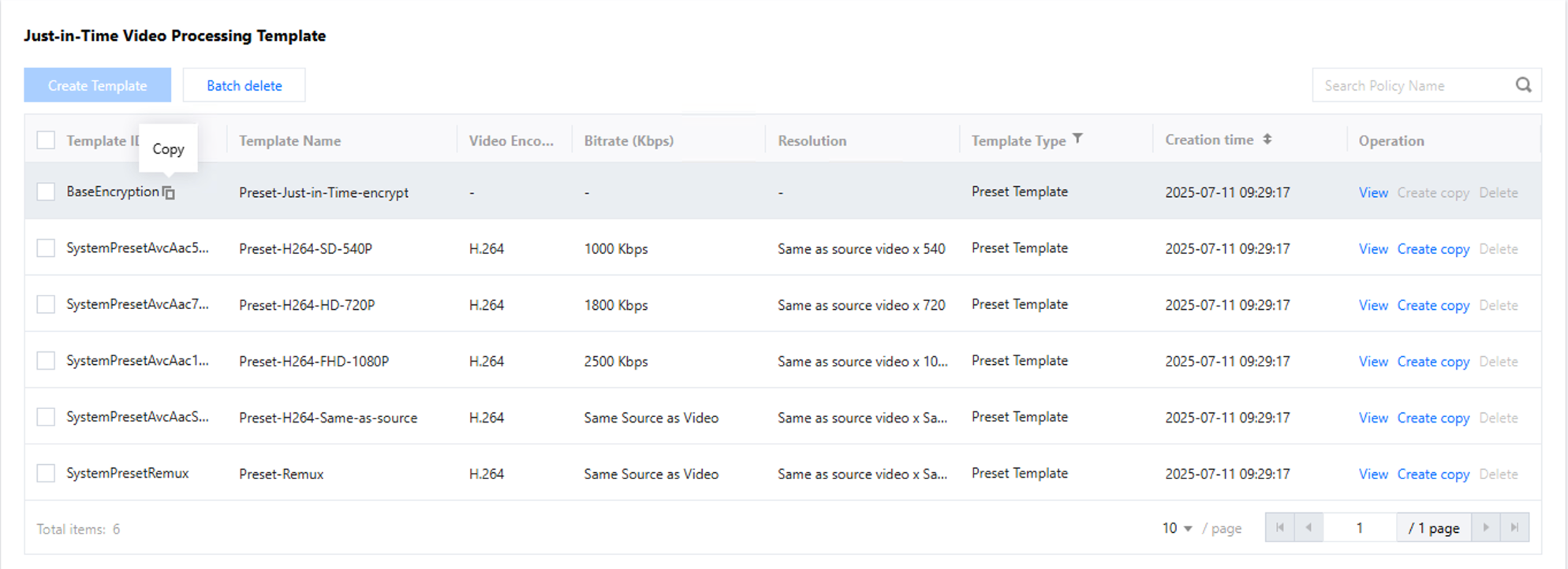
EdgeOne provides you with 5 just-in-time transcoding templates. You can choose any of the following transcoding templates based on the resolution you need.
Note:
Note the corresponding audio and video output muxing format when using transcoding templates.
When using the BaseEncryption template for instant encryption, be sure to enable Token authentication TypeV at the same time.
Template Name
Template ID
Transcoding Template Description
Applicable Muxing Format
Preset-H264-SD-540P
SystemPresetAvcAac540p
Video resolution: 540P, video codec: H.264, video frame rate: 25fps, and audio codec: AAC and dual-channel
Supports HLS
Preset-H264-HD-720P
SystemPresetAvcAac720p
Video resolution: 720P, video codec: H.264, video frame rate: 25fps, and audio codec: AAC and dual-channel
Supports HLS
Preset-H264-FHD-1080P
SystemPresetAvcAac1080p
Video resolution: 1080P, video codec: H.264, video frame rate: 25fps, and audio codec: AAC and dual-channel
Supports HLS
Preset-H264-Same-as-source
SystemPresetAvcAacSourceResolution
Video resolution: same as that of the original video, video codec: H.264, video frame rate: 25fps, and audio codec: AAC and dual-channel
Supports HLS
Preset-Remux
SystemPresetRemux
Only remuxing required, which means that the video resolution, video codec, audio codec, and number of channels are all the same as those of the original video
Supports HLS and MP4
Preset-Just-in-Time-encrypt
BaseEncryption
Encrypt video segments with instant encryption templates to enhance file delivery security.
Supports HLS
You can also create a new video transcoding template based on your business needs and customize the settings. The steps are as follows:
1. Log in to the Tencent Cloud EdgeOne console, enter Service Overview in the left menu bar, and click the site to be configured under Website Security Acceleration.
2. On the site details page, click Multimedia Services > Audio and Video Processing to find the Video Just-In-Time Processing card.
3. Click Create Template and fill in the template parameters as required:
Template name: Supports Chinese characters, letters, numbers, hyphens, 2-120 characters.
Encoding format: H.264, H.265
Video bitrate: 128kbps - 10000kbps
Resolution: Video long side (width) and short side (height) ranging from 128px to 1920px
Frame rate: 1fps - 30fps
Padding mode: Black bars, White bars, Stretch, Gaussian blur
Audio encoding: AAC
Audio channels: Stereo
4. After creation, return to the Video Instant Processing Template card and copy the template ID for constructing instant processing URLs.
Spelling Example
Assume your video playback URL is: https://www.example.com/video.mp4
If you want to obtain just-in-time transcoded HLS output, select the SystemPresetAvcAacSourceResolution template. The spelled just-in-time transcoding URL is: https://www.example.com/video.mp4/.edgeone-video/template=SystemPresetAvcAacSourceResolution/media.m3u8
If you want to transcode the video to the HLS format output with 1080P resolution, you can choose the SystemPresetAvcAac1080p template. The spelled URL is: https://www.example.com/video.mp4/.edgeone-video/template=SystemPresetAvcAac1080p/media.m3u8
To encrypt videos, you can select the BaseEncryption template and enable Token authentication TypeV. The spelled URL is:https://www.example.com/video.mp4/.edgeone-video/template=BaseEncryption/media.m3u8?t=68830140&sign=0bea2ce65324daf685131978a34202a7
Using the Generate Transcoding Address Tool
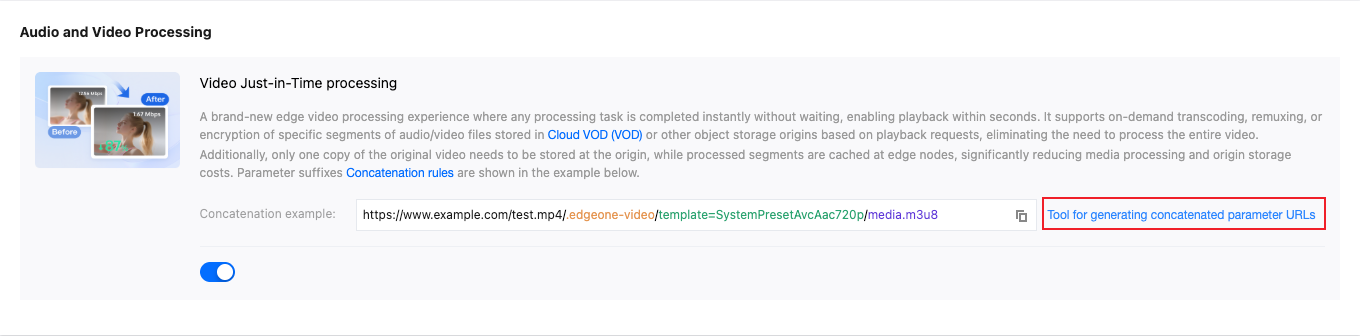
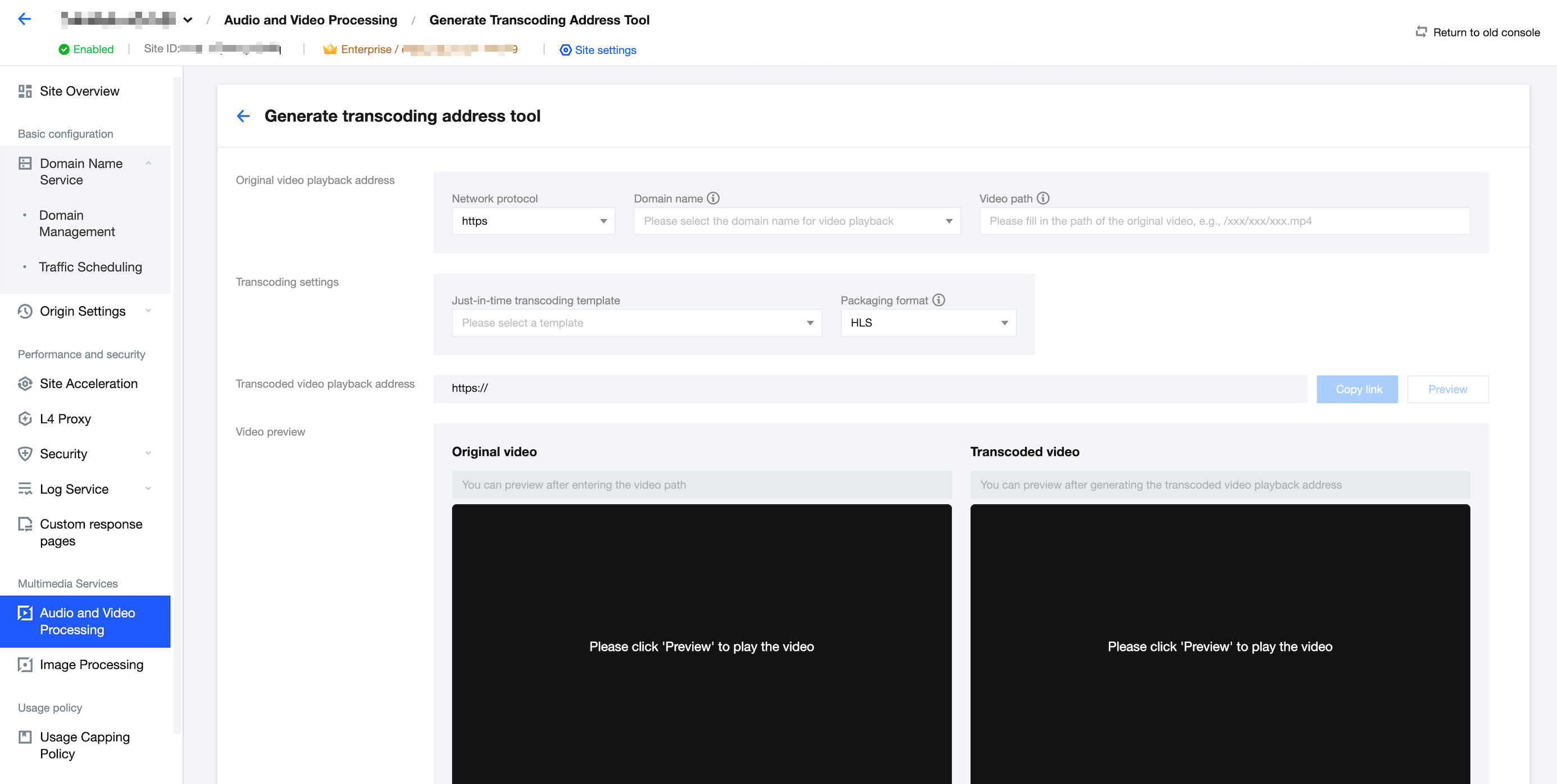
To facilitate users to quickly obtain the transcoding address after parameter concatenation, the EdgeOne console provides the Generate Transcoding Address Tool. By filling in the required transcoding parameters, you can obtain the transcoded file URL.
1. Log in to the Tencent Cloud EdgeOne console, enter Service Overview in the left menu bar, and click the site to be configured under Website Security Acceleration.
2. On the site details page, click Multimedia Services > Audio and Video Processing to find the Video Just-In-Time Processing card.
3. Click the Switch for Video Just-In-Time Processing. After this capability is enabled, click the Tool for generating concatenated parameter URLs.
4. Select the domain name whose origin server is VOD or an object storage-based origin server for the acceleration domain name in the site, enter the video path to be transcoded, and select the target transcoding configuration. Click Preview to check whether the original video and transcoded video play normally, and click Copy Link to obtain the transcoded video playback URL for accelerated delivery.
Network protocol: Support HTTP and HTTPS. Note that HTTP protocol cannot be used to preview transcoded videos in the console due to browser limitations; preview and play them externally.
Acceleration domain name: Select an acceleration domain name that has been bound to a VOD or object storage-based origin server. To create an origin server, see the VOD origin server guide.
Video path: Enter the access path of the audio/video file in VOD or an object storage-based origin server, for example: video/test.mp4.
Just-In-Time Transcoding Template: Select a preset just-in-time transcoding template. For the output video muxing formats supported by each template, see Transcoding Template.
Muxing format: For video playback, it is recommended to choose the HLS format. The MP4 format is recommended only for video download scenarios.
Preview of original videos: If the original video plays normally, it indicates that the original video path is legal. Otherwise, check if the video path is correct.
Preview transcoded videos: If the preview transcoded video plays normally, it indicates that the instant transcoding feature has been triggered successfully. If it is an MP4 file, it will be downloaded directly in the console and does not support preview.
Use Limits
Original Video Limits
Original videos must be stored in Tencent Cloud VOD or object storage origin servers.
The original video shall have a duration of no longer than 10 hours, a size of no more than 50 GB, a maximum resolution of -2K, a bitrate of no more than 10 Mbps, and a frame rate of no more than 60 fps.
When the SystemPresetRemux is used for remuxing, the input video must have the video codec of H.264 and the audio codec of AAC.
The following formats are supported for original videos, but it is required that the video and audio indexes are contained in muxing.
Video: MOV, MPEG, MP4, AVI, TS, MKV, M3U8, and M4V.
Audio: MP3, M4A, WAV, and AAC.
Transcoded Video Limits
For HLS format output, multipart transcoding only supports MPEG-TS.
For HLS format output, if Token authentication is enabled for the domain name, only playback under TypeV authentication is supported.
For MP4 format output, the file content uses progressive encoding (some players may not support this type of MP4 playback), and only supports the SystemPresetRemux template.
Request Rate Limiting
Video instant processing has a default request rate limit of 20 requests per second for each domain. This rate limit does not apply to requests accessing previously cached transcoded videos.
If the estimated request rate may exceed this limit, we recommend that you contact us in advance so that we can prepare resources for your business and avoid issues caused by request limits.
For requests that exceed the rate limit, the system will take the following measures:
HLS format output:
When requesting M3U8 index files, a 302 status code will be returned, temporarily redirecting to the original video.
When requesting MPEG-TS video segments, a 429 status code will be returned, indicating too many requests.
MP4 format output: A 302 status code will be returned, temporarily redirecting to the original video.