
Edge Acceleration
  • Site Acceleration
    • Overview
    • Access Control
      • Token authentication
        • Token Authentication
        • Authentication Method A
        • Authentication Method B
        • Authentication Method C
        • Authentication Method D
        • Authentication Method V
    • Smart Acceleration
    • Cache configuration
      • Overview
      • EdgeOne caching rules introduction
        • Content Cache Rules
        • Cache Key Introduction
        • Vary Feature
      • Cache Configuration
        • Custom Cache Key
        • Node Cache TTL
        • Status Code Cache TTL
        • Browser Cache TTL
        • Offline Caching
        • Cache Prefresh
      • Clear and Preheat Cach
        • Cache Purge
        • URL Pre-Warming
        • Prefetch M3U8
      • How to improve the Cache Hit Rate of EdgeOne
    • File Optimization
      • Content Compression
      • Smart Compression
    • Network Optimization
      • HTTP/2
      • HTTP/3(QUIC)
        • Overview
        • Enable HTTP/3
        • QUIC SDK
          • SDK Overview
          • SDK Download and Integration
          • Sample Code
            • Android
            • iOS
          • API Documentation
            • Android
            • iOS
      • IPv6 Access
      • Maximum Upload Size
      • WebSocket
      • Client IP Geolocation Header
      • Client IP Geographical Location
      • gRPC
      • Network Error Logging
    • URL Rewrite
      • Access URL Redirection
      • Origin-Pull URL Rewrite
    • Modifying Header
      • Modifying HTTP Response Headers
      • Modifying HTTP Request Headers
    • Modify response content
      • HTTP Response
      • Custom Error Page
    • Rules Engine
      • Overview
      • Rule Management
      • variables
      • Supported Matching Types and Actions
    • Image and video processing
      • Audio and Video Pre-pulling
      • Just-in-Time Image Processing
      • Video Just-In-Time Processing
      • VOD Media Origin
    • Speed limit for single connection download
    • Request and Response Actions
      • HTTP Response
      • Processing order
      • Default HTTP Headers of Origin-Pull Requests
      • Default HTTP Response Headers
      • HTTP Restrictions
    • Media Services
      • Audio and Video Pre-pulling
      • Just-in-Time Image Processing
      • Just-in-Time Media Processing
      • VOD Media Origin
  • L4 Proxy
    • Overview
    • Creating an L4 Proxy Instance
    • Modifying an L4 Proxy Instance
    • Disabling or Deleting an L4 Proxy Instance
    • Batch Configuring Forwarding Rules
    • Obtaining Real Client IPs
      • Obtaining Real TCP Client IPs via TOA
      • Obtaining Real Client IPs Through Protocol V1/V2
        • Overview
        • Method 1: Obtaining Real Client IPs Through Nginx
        • Method 2: Parsing Real Client IPs on Application Server
        • Format of Real Client IPs Obtained Through Proxy Protocol V1/V2
      • Transmitting Client Real IP via SPP Protocol
  • Domain name service and origin server configuration
    • Domain Name Services
      • Overview
      • DNS resolution for managed domains
        • Modifying DNS Servers
        • Configuring DNS Records
        • Batch Importing DNS Records
        • Advanced DNS Configuration
      • Access accelerated domains
        • Adding A Domain Name for Acceleration
        • Ownership Verification
        • Modifying CNAME Records
        • Verify Business Access
      • Traffic scheduling
        • Traffic Scheduling Management
    • HTTPS Certificate
      • Overview
      • Edge HTTPS Certificate
        • Overview
        • Deploying/Updating SSL Certificate for A Domain Name
        • Configuring A Free Certificate for A Domain Name
        • Using Keyless Certificate
      • Edge mTLS Authentication
      • Origin Certificate Validation
      • HTTPS configuration
        • Forced HTTPS Access
        • Enabling HSTS
        • SSL/TLS security configuration
          • Configuring SSL/TLS Security
          • TLS Versions and Cipher Suites
        • Enabling OCSP Stapling
      • Related References
        • Using OpenSSL to Generate Self-Signed Certificates
        • Certificate Format Requirements
        • The Difference Between one-way authentication and Mutual authentication
    • Origin Configuration
      • Load Balancing
        • Overview
        • Quickly Create Load Balancers
        • Health Check Policies
        • Viewing the Health Status of Origin Server
        • Related References
          • Load Balancing-Related Concepts
          • Introduction to Request Retry Strategy
      • Origin Group Configuration
      • Origin configuration
        • Origin-Pull Timeout
        • Configuring Origin-Pull HTTPS
        • Host Header Rewrite
        • Controlling Origin-pull Requests
        • Redirect Following During Origin-Pull
        • HTTP/2 Origin-Pull
        • Range GETs
        • Modify Origin
        • Origin-pull Rate Limiting Policy
      • Origin Protection(Obtaining/Updating Origin IP Address Range)
      • Related References
        • ld Version Origin Group Compatible Related Issues

Status Code Cache TTL

Function Introduction

When EdgeOne retrieves resources from the origin, if the origin successfully responds with the resources, EdgeOne will respond to the client request and cache it in EdgeOne for direct response next time. If the origin responds with an exception status code such as 4xx or 5xx, EdgeOne cannot obtain the resources, and the next request will still trigger a follow origin, which may put significant pressure on the origin. By configuring the status code cache TTL, EdgeOne can directly respond with the exception status code within the cache time, instead of triggering a follow origin for all requests, which can mitigate the pressure on the origin and improve the response speed.
Currently, the following status codes can be configured:
4xx: 400, 401, 403, 404, 405, 407, 414.
5xx: 500, 501, 502, 503, 504, 509, 514.
Note:
EdgeOne caches the 404 status code by default for 10 seconds.
The prerequisite for the status code cache to take effect is that the resource can be cached in the node according to the node cache TTL configuration. If the resource is not cached in the node, the status code cache will not be triggered.

Directions

Scenario 1: Configure status code cache TTL for all domain names of a site

If you need to configure the status code cache TTL for the whole connected site, or as a fallback configuration for the site level, please refer to the following steps:
1. Log in to the Tencent Cloud EdgeOne console, enter Service Overview in the left menu bar, and click the site to be configured under Website Security Acceleration.
2. On the site details page, click Site Acceleration to enter the global configuration page. Then click the Rule Engine tab.
3. On the rule engine page, click Create rule and select Add blank rule.
4. On the rule editing page, select the matching type as All.
5. Click the Action, and in the pop-up operation list, select the operation as status code cache, and configure the corresponding cache status code and cache time.
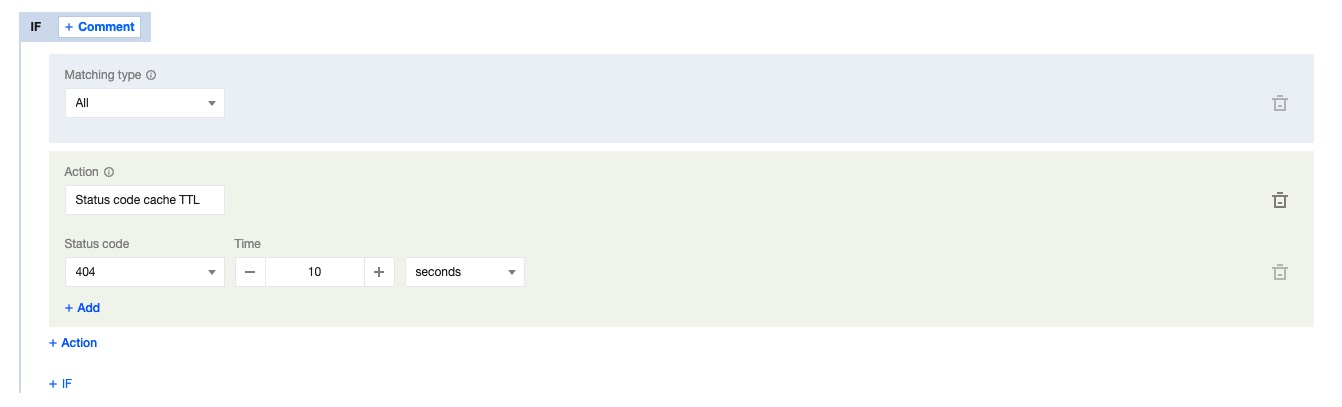
6. Click save and publish to complete the rule configuration.

Scenario 2: Configure status code cache TTL for specified domain names, paths, or file extensions

If you need to configure different status code cache TTL for different domain names, paths, or file extensions, for example, configure the status code cache TTL for the www.example.com domain under the example.com site, please refer to the following steps:
1. Log in to the Tencent Cloud EdgeOne console, enter Service Overview in the left menu bar, and click the site to be configured under Website Security Acceleration.
2. On the site details page, click Site Acceleration to enter the global configuration page. Then click the Rule Engine tab.
3. On the rule engine page, click Create rule and select Add blank rule.
4. On the rule editing page, select Host as the matching type and configure it as www.example.com.
5. Click the Action, and in the pop-up operation list, select the operation as status code cache, and configure the corresponding cache status code and cache time.
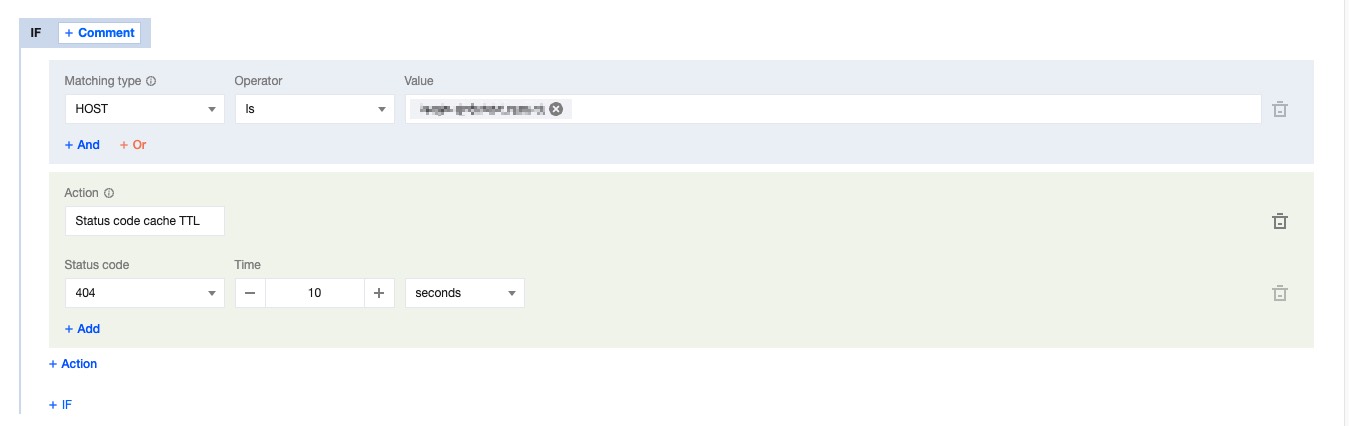
6. Click save and publish to complete the rule configuration.