EdgeOne collaborates with TCOP to provide monitoring and alarm features for key business metrics such as traffic, bandwidth, and request volume, ensuring stable operation of user services. Users can leverage TCOP's alerting capabilities to configure detailed alarm trigger rules and receive notifications through multiple channels, including phone calls, SMS, emails, WeChat, and customer service VIP groups, thereby significantly improving alarm response speed and handling efficiency.
Note:
When you select phone and SMS alarm channels in TCOP, related fees may be incurred, which are charged by TCOP.
Applicable Scenarios
This document applies to users who have onboarded EdgeOne and need to monitor and configure alarms for business metrics data of domains and L4 proxy instances in EdgeOne services.
Configuration Guide
Step 1: Configure Alarms
1. Log in to the TCOP console, in the left navigation, choose Alarm Management > Alarm Configuration, click New Policy, then select Custom Alarm Policy.
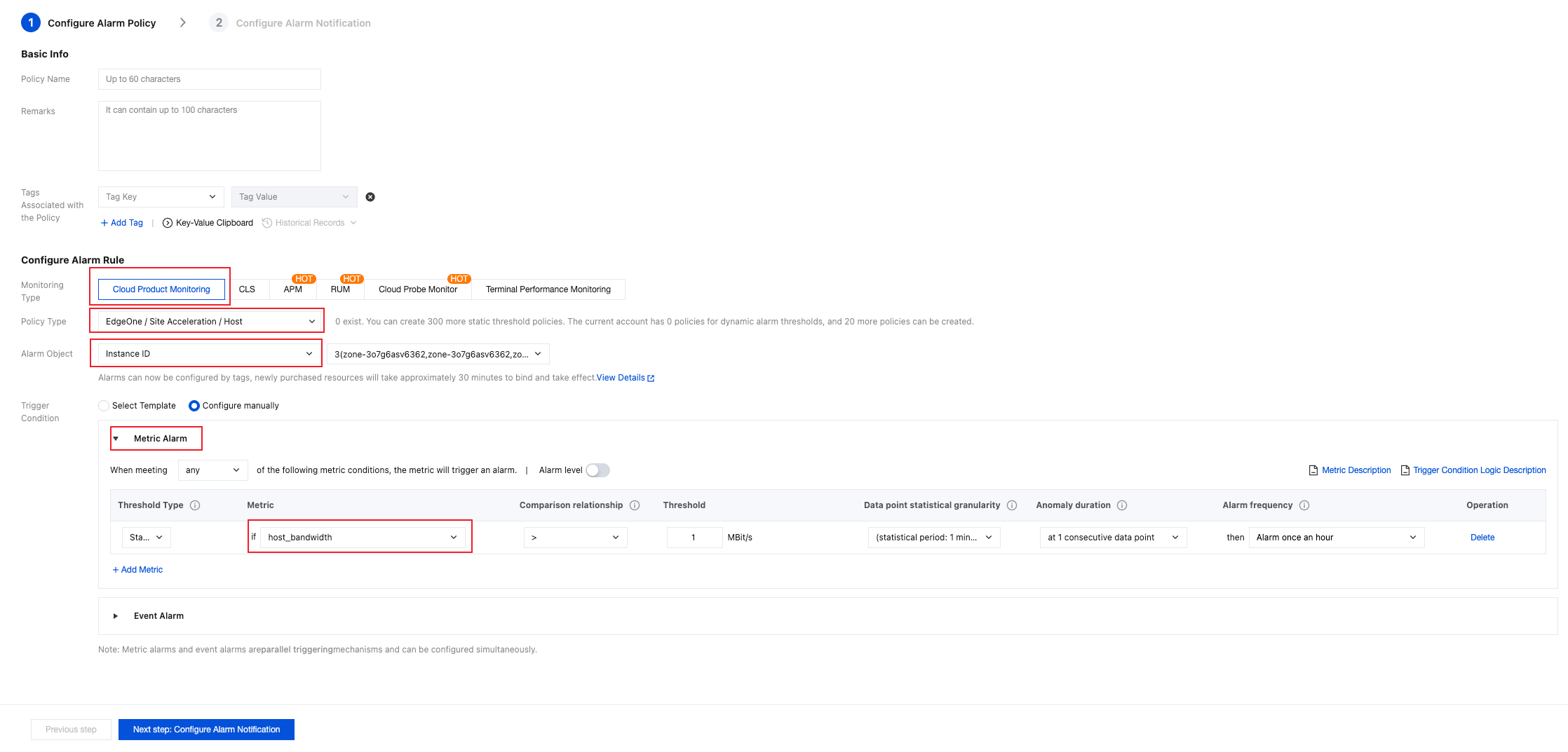
2. The detailed configuration items of the alarm policy are as follows:
2.1 Select Cloud Product Monitoring for the monitoring type.
2.2 Select EdgeOne for the policy type.
2.3 Select Metric Alarm as the trigger condition.
2.4 Select the metrics for which alarms need to be configured in the dropdown.
1. Confirm whether the system preset notification template meets expectations. If you need to customize the notification template, refer to Create Notification Template.
2. After selecting the desired notification template, click Complete to save the configuration.