

Tag-based Cost Allocation
Feature Introduction
Tag-based cost allocation is a feature that enables custom management of users' cloud resource bills from the perspective of statistical analysis by leveraging the tag tool and cost allocation capabilities. Users can use tags to reallocate and analyze the costs or expenses of cloud resources in the bill according to their management or analysis needs by cost allocation dimensions such as the department using the resource or the application project for the resource.
1. Allocating shared cloud resource costs across multiple departments (e.g., acceleration department/security department sharing EdgeOne services)
2. Cost accounting for different business lines within the same department (e.g., independent billing for subdomains of the Mobile Game Android group/Mobile Game iOS group)
Note:
EdgeOne tag-based cost allocation is an allowlist feature. You need to contact us for allowlist configuration before you can implement tag-based cost allocation.
The EdgeOne tag-based cost allocation feature is only available to Enterprise edition users. Once activated, it will take effect from the 1st of the following month and cannot be applied to historical bills.
Typical Example
Example scenario: Cost allocation for shared cloud resources across multiple departments
Typical Scenario: Department A (a.com) and Department B (b.com) of a company jointly use the company's purchased EdgeOne Enterprise Edition package.
Target: The current goal is to separately calculate the monthly billing costs for Department A and Department B.
Solution:
Create corresponding Tag key-value pairs for each department, for example, Department: A, Department: B.
Bind the corresponding Tag key-value pairs to each site. For example, bind the Tag (Department: A) to a.com and the Tag (Department: B) to b.com.
Once sites are bound to tags, the corresponding tag-based cost allocation will be displayed in the bill.
Operation Guide
1. Log in to the Tencent Cloud Tag Console to create tags. For details, see Tag > Operation Guide > Create Tag.
2. Go to Billing Center > Cost Allocation Management > Cost Allocation Tags to set up cost allocation tags. For detailed setup steps, see Billing > Cost Allocation Management > Cost Allocation Tags.
3. The finest resource granularity of EdgeOne is the site, so tags can only be bound to the site. You can bind tags when a new site is added or after the site is added. Below is a brief description:
Binding a Tag When Creating a Site
1. Log in and go to EdgeOne Console > Service Dashboard, under the Website Security Acceleration TAB, click Add Site.
2. On the site addition page, click Add under Tags, and select the corresponding Tag key and Tag value, for example, "Department: A".
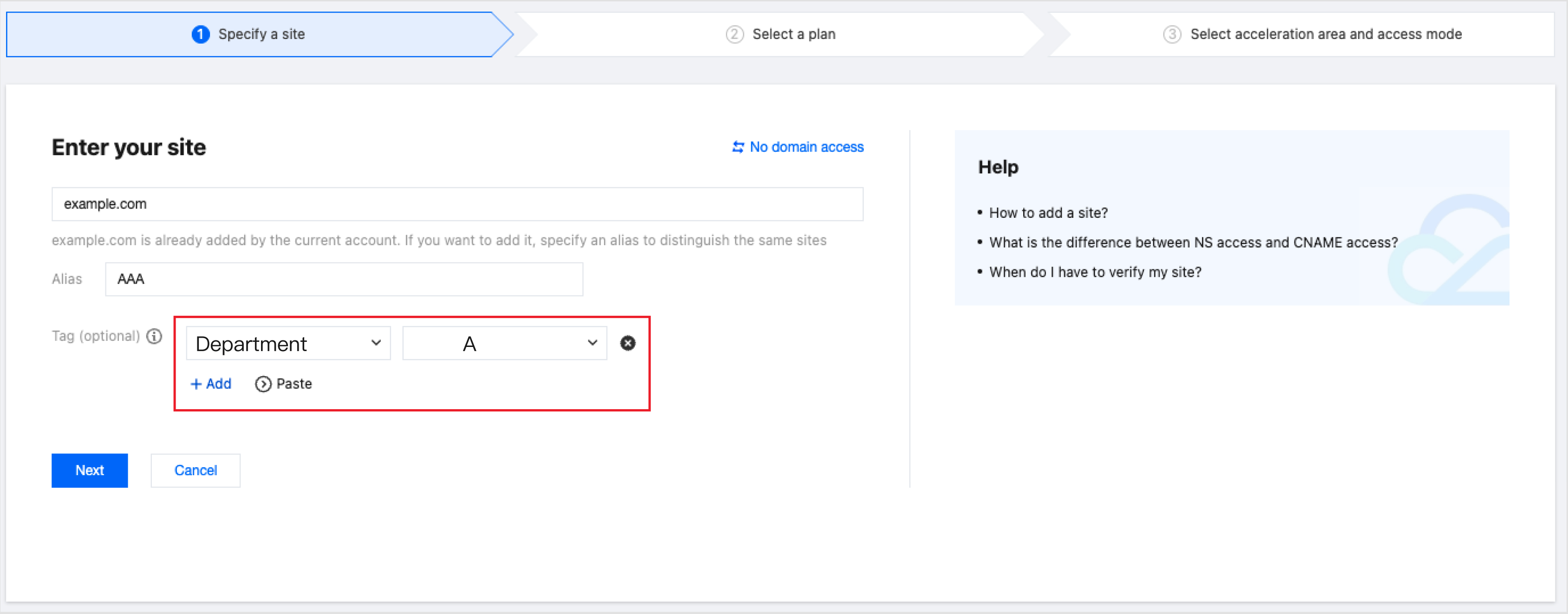
3. After site access is completed according to the site addition steps, if you can query the bound tag information on the site list page, it indicates that the tag binding is successful.

4. Repeat steps 1, 2, and 3 to bind the Tag (Department: B) to b.com.
Binding a Tag to an Existing Site
1. Log in and go to EdgeOne Console > Service Dashboard, select the site to which you want to bind a Tag, and choose More > Edit Tag.

2. In the pop-up window, add the corresponding tag key and tag value, and click OK to complete the tag binding.
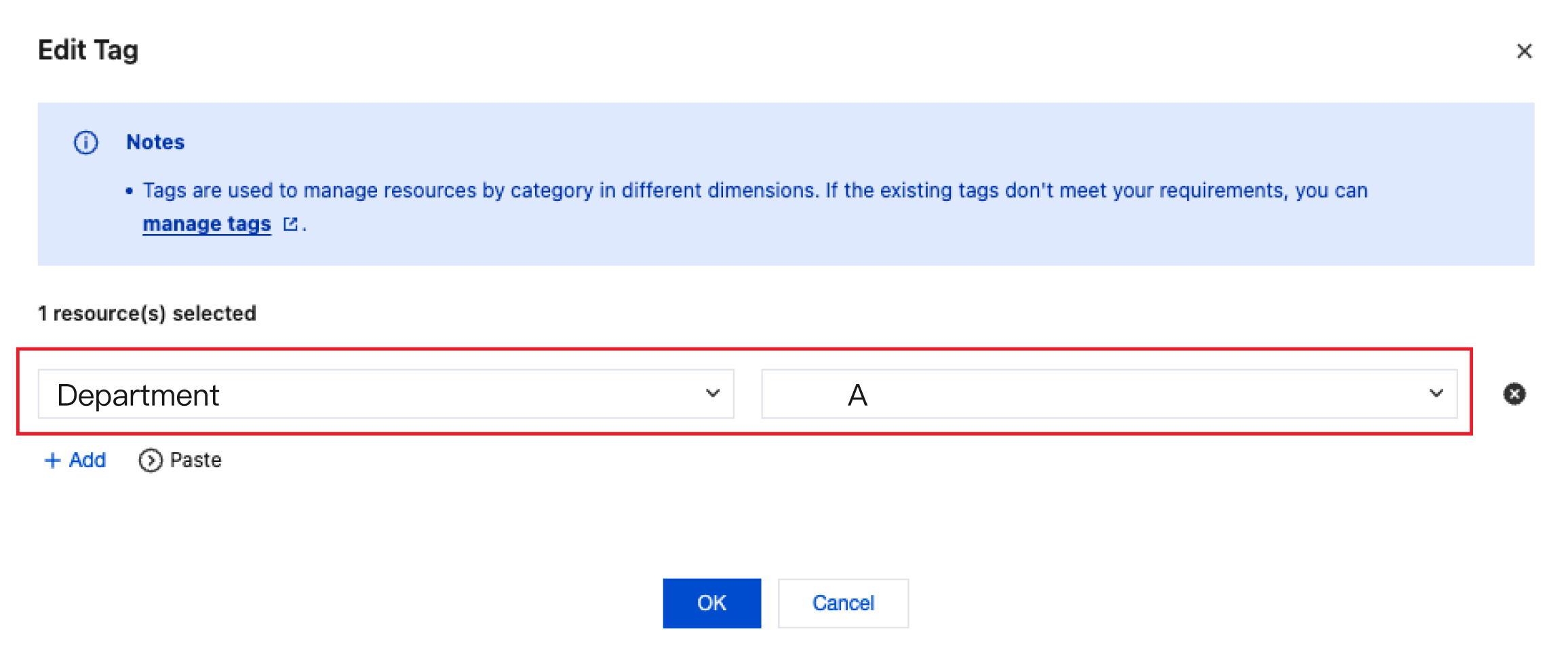
3. If you can query the bound tag information on the site list page, it indicates that the tag binding is successful.

4. Repeat steps 1, 2, and 3 to bind the Tag (Department: B) to b.com.
Example scenario: Cost accounting for different business lines within the same department
Typical Scenario: In a gaming project (game.com), the mobile game (Android) team (android.game.com) and mobile game (iOS) team (ios.game.com) jointly use the company's purchased EdgeOne Enterprise Edition package.
Target: Currently, we aim to separately calculate the costs of different project groups.
Solution:
Create corresponding tag key-value pairs for each project, such as Business Group: Mobile Game Android Team, Business Group: Mobile Game iOS Team.
Bind corresponding tag key-value pairs to each domain, for example, bind the tag (Business Group: Mobile Game Android Team) to android.game.com, and bind the tag (Business Group: Mobile Game iOS Team) to ios.game.com.
After the site is bound with tags, you can view the corresponding cost allocation by tag in the bill.
Operation Guide
1. Log in to the Tencent Cloud Tag Console to create tags. For details, see Tag > Operation Guide > Create Tag.
2. Go to Billing Center > Cost Allocation Management > Cost Allocation Tags to set up cost allocation tags. For detailed setup steps, see Billing > Cost Allocation Management > Cost Allocation Tags.
3. EdgeOne Tag Accounting can only split costs at the site level and summarize expenses by tag. If you need to split settlement for domain names under the same site, for example, the existing
Implement through EdgeOne site access methods with the same name
1. Log in and go to EdgeOne Console > Service Dashboard, under the Website Security Acceleration TAB, click Add Site.
2. When entering the site creation page, create a new site for game.com, click Add under Tags, and select the corresponding tag key and value, such as "Business Group: Android".
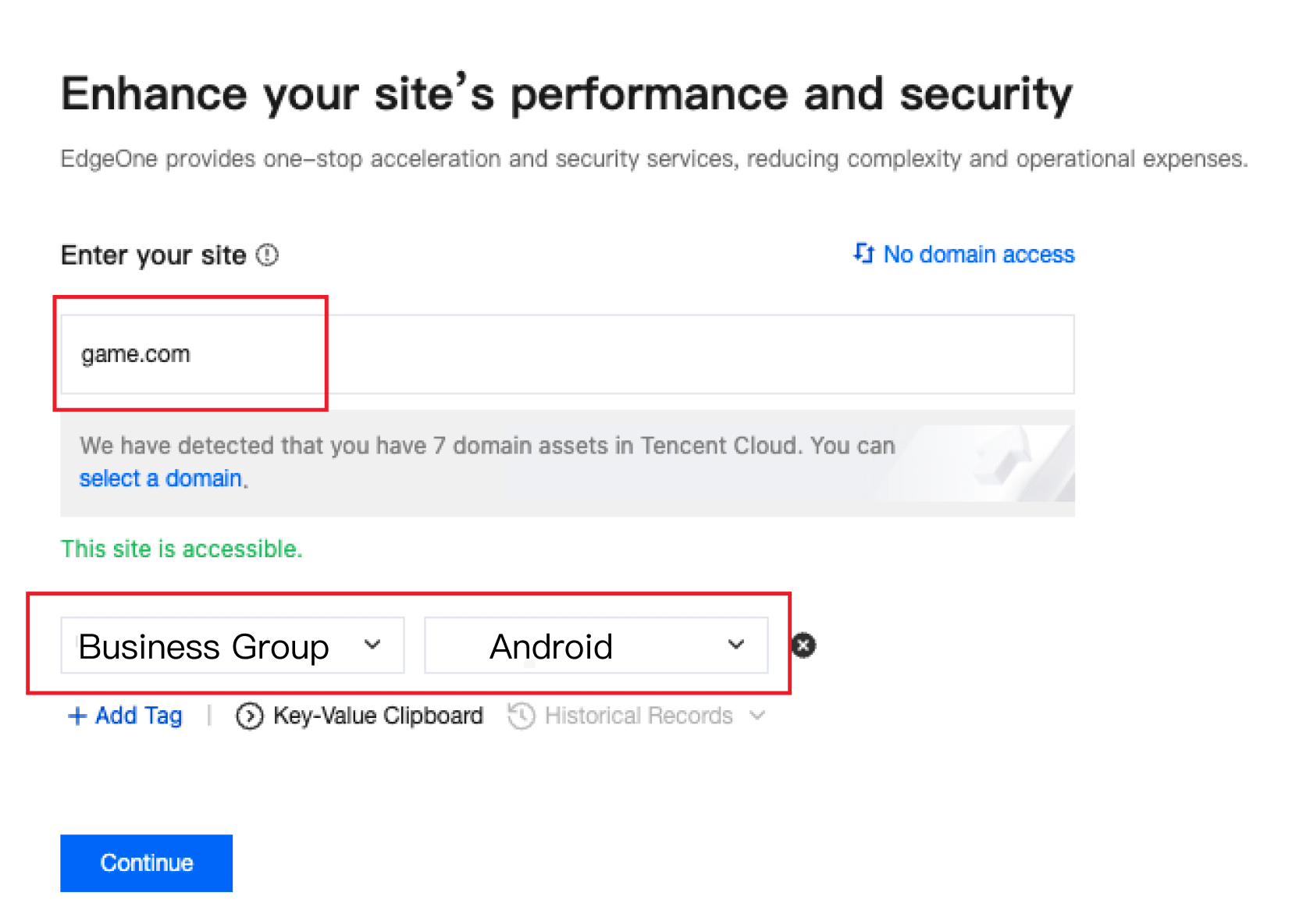
3. After site access is completed according to the site addition steps, if you can query the bound tag information on the site list page, it indicates that the tag binding is successful.
4. Create site
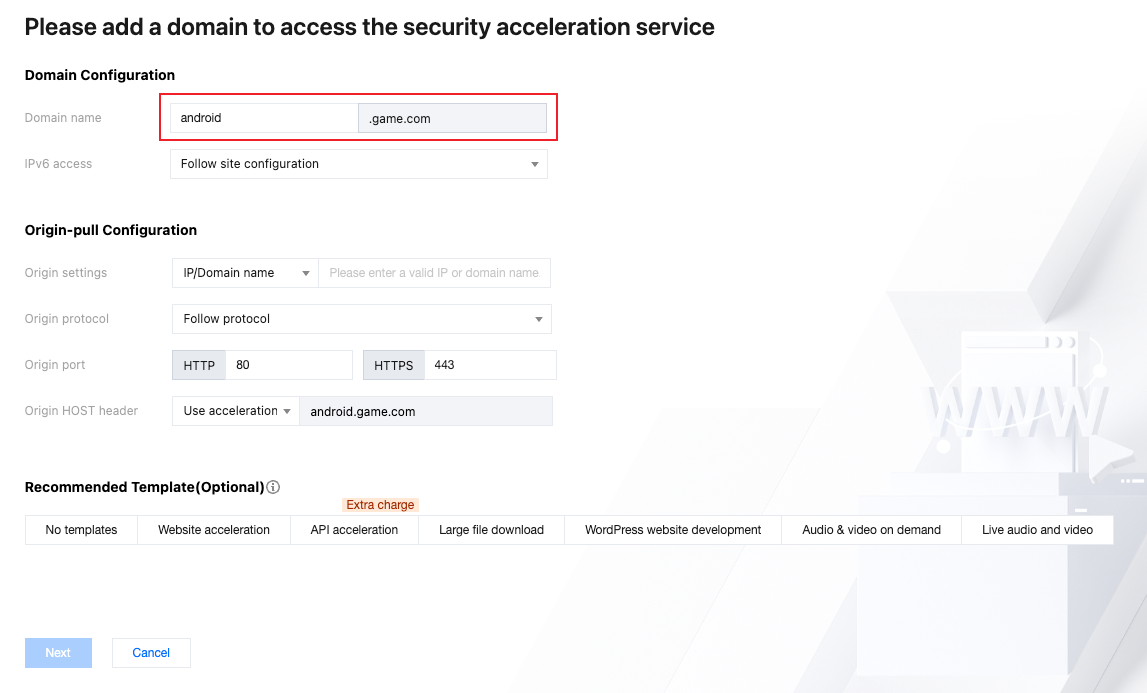
5. Create a new site game.com with the same name, set the identical site identifier "ios_project", and bind the tag "Business Group: IOS".
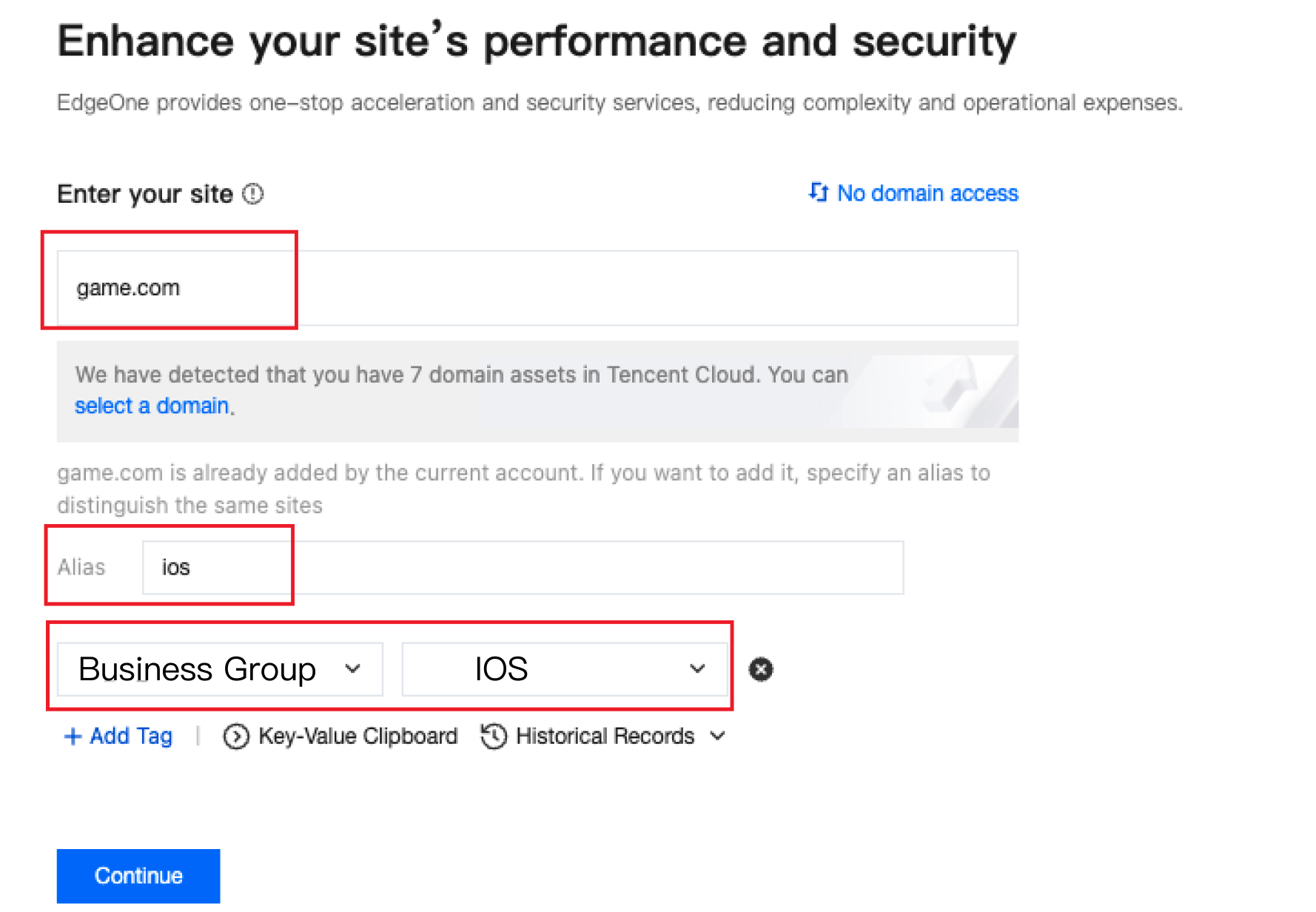
6. After site access is completed according to the site addition steps, if you can query the bound tag information on the site list page, it indicates that the tag binding is successful.
7. Add the corresponding domain (ios.game.com) to this site. Subsequently, all subdomains under "Business Group: Mobile Game iOS Team" will be managed under this site.
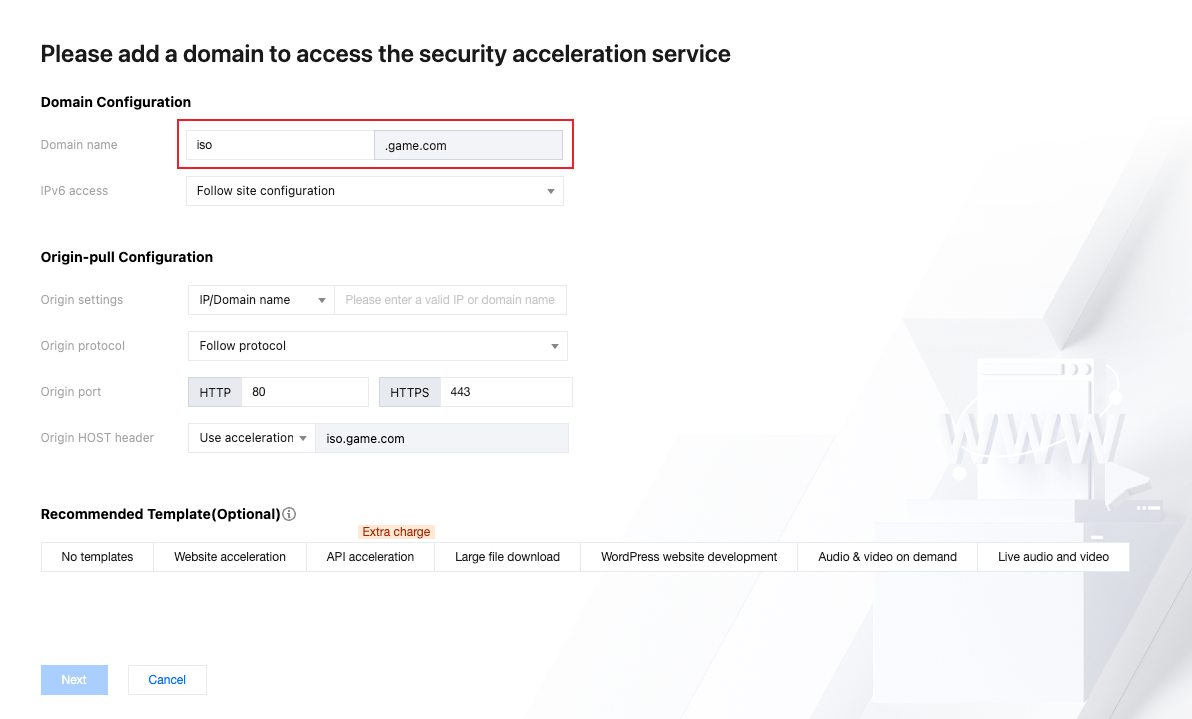
Implement designated name association via EdgeOne content identifier
1. Log in and go to EdgeOne Console > Service Overview > Content Identifier, click Add Content Identifier.
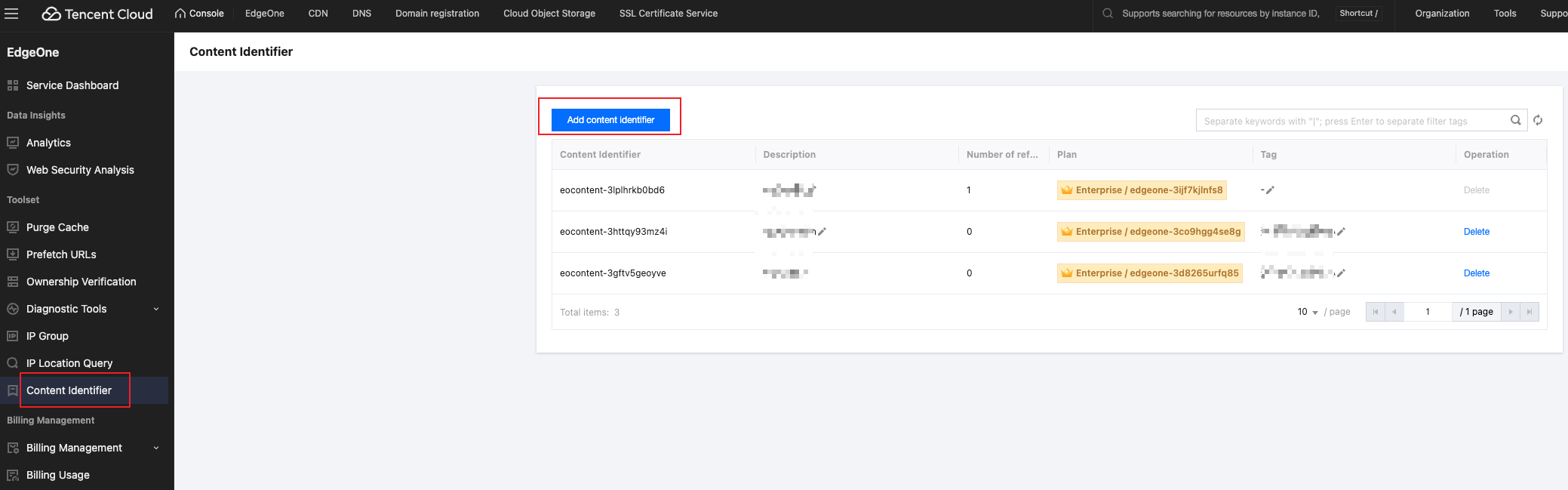
2. Create a content identifier to identify domain names responsible for the acceleration department and security group, and associate tags with the content identifier.
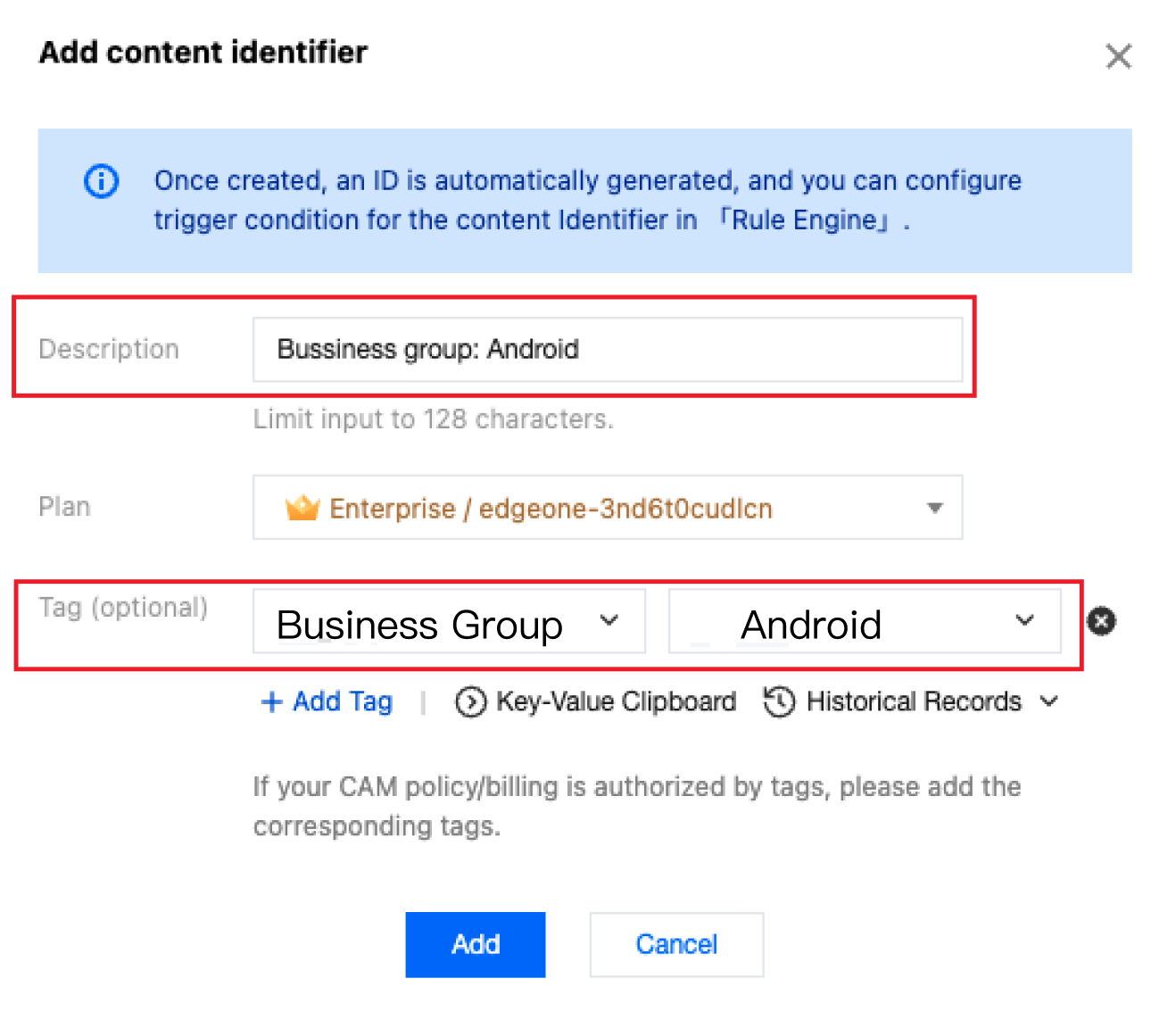
3. In the rule engine, map and associate the domain names and content identifiers by department. For the association method, please refer to configure content identifier. This method implements cost allocation for content identifiers and domain names simultaneously. Example configuration is shown in the figure below:

4. All subsequent subdomains under "Business Group: Mobile Game Android Team" will be managed with the "Business Group: Mobile Game Android Team" content identifier. For example, android1.game.com will also be mapped to this content identifier.
5. Repeat the above steps 123 to associate the content identifier with the domain ios.game.com.
Cost Allocation Logic
Cost allocation is performed by splitting and settling bills based on the site dimension using Tag-based allocation. The allocation logic for each billing item is as follows:
Billing Type | Billing Item | Billing Allocation Method |
Fixed fee | Plan fee | Fixed fees are evenly distributed across all sites within the plan, with each site's Tag corresponding to its respective usage fees. |
| Quota fee (number of sites, rate limit rules, custom rules) | |
| Minimum usage fee for each Enterprise Edition service | |
Traffic fees | Content acceleration traffic, intelligent acceleration traffic, layer-4 acceleration traffic, Chinese mainland network optimization traffic | Usage is calculated separately based on the actual consumption of each site, with each site's Tag corresponding to its respective usage fees. |
Request Fee | HTTP/HTTPS secure requests, intelligent acceleration requests, BOT requests, QUIC requests | Usage is calculated separately based on the actual consumption of each site, with each site's Tag corresponding to its respective usage fees. |
Other fees | Edge Function requests, Edge Function CPU Time, AI inference, MPS duration, log analysis | Usage is calculated separately based on the actual consumption of each site, with each site's Tag corresponding to its respective usage fees. |
Bandwidth fee | Content acceleration bandwidth, intelligent acceleration bandwidth, layer-4 acceleration bandwidth, Chinese mainland network optimization bandwidth | 1. Aggregated Billing Bandwidth: The total bandwidth generated by all sites within the plan during the billing cycle is calculated and used as the billing benchmark. 2. Calculate Traffic Proportion: Measure the actual traffic for each site individually, and then calculate the proportion of each site's traffic relative to the total plan traffic. 3. Allocate Bandwidth: The total billing bandwidth of the plan is allocated to each site based on its traffic proportion, resulting in the allocated bandwidth value for each site. 4. Tag-based Cost Allocation: The bandwidth cost for each site's Tag is calculated separately, based on the allocated bandwidth of each site and combined with its associated site Tag. |
Note:
If a site is not bound to any Tag, the bill is still split by site. However, the costs generated by that site are categorized under the "Unassigned" Tag category and are not included in any Tag's cost allocation bill. It is recommended that you complete Tag binding for all sites before enabling Tag-based cost allocation to avoid cost omissions.
Tag Bill Query
After binding the tags to the EdgeOne site and setting them as cost allocation tags, you can view the tag fee summary in the Billing Center in the following ways: Billing Center > Cost Allocation Management > Cost Allocation Tags